Speed Up Your Pc 100% More Faster.
- There are several ways you can try to speed up your computer. Keep in mind that the effectiveness of these methods can vary depending on your specific computer and its configuration. Here are some steps you can take:

- Clean Up Disk Space:
- Delete unnecessary files, old downloads, and temporary files. You can use the built-in Disk Cleanup tool on Windows or similar tools on other operating systems.
- Uninstall programs you no longer use.
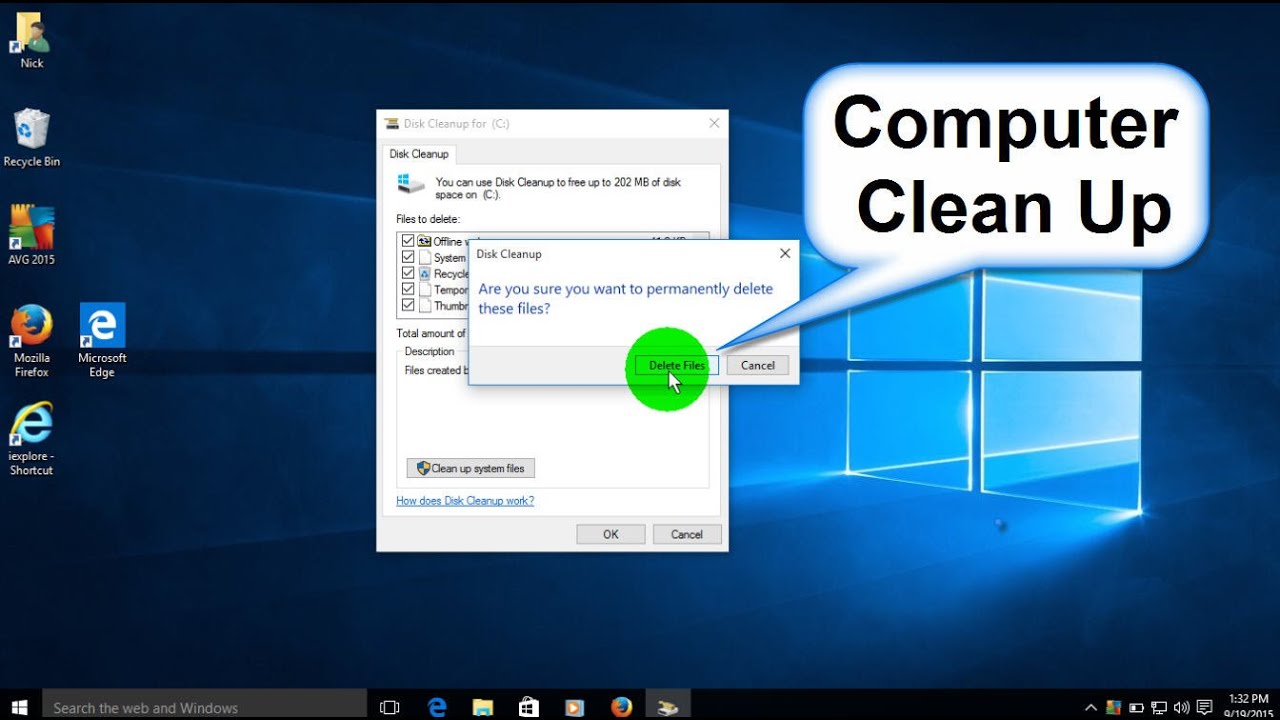
- Delete unnecessary files, old downloads, and temporary files. You can use the built-in Disk Cleanup tool on Windows or similar tools on other operating systems.

- Uninstall programs you no longer use.

- Manage Startup Programs:
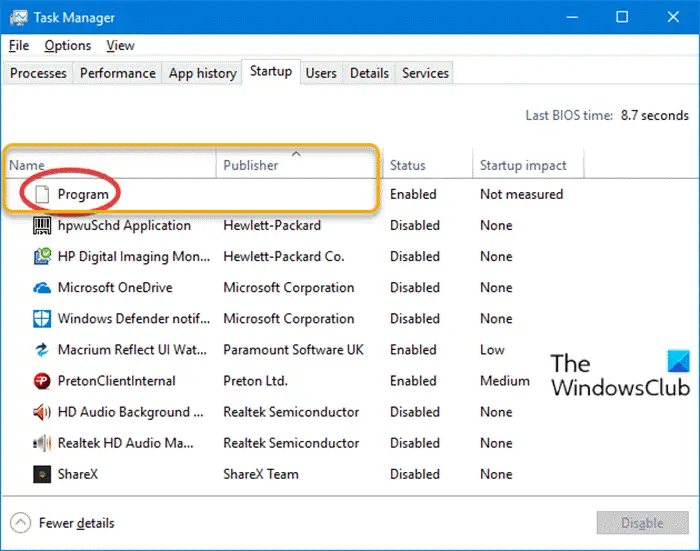
- Disable unnecessary startup programs that launch when your computer boots up. These can slow down your startup time.
- On Windows, you can use the "Task Manager" to manage startup items. On macOS, use "System Preferences" > "Users & Groups" > "Login Items."
Disable unnecessary startup programs that launch when your computer boots up. These can slow down your startup time.- On Windows, you can use the "Task Manager" to manage startup items. On macOS, use "System Preferences" > "Users & Groups" > "Login Items."
- Upgrade Hardware:
- If your computer's hardware is outdated, consider upgrading components like RAM and storage (e.g., switching to a solid-state drive, or SSD). More RAM and faster storage can significantly improve performance.
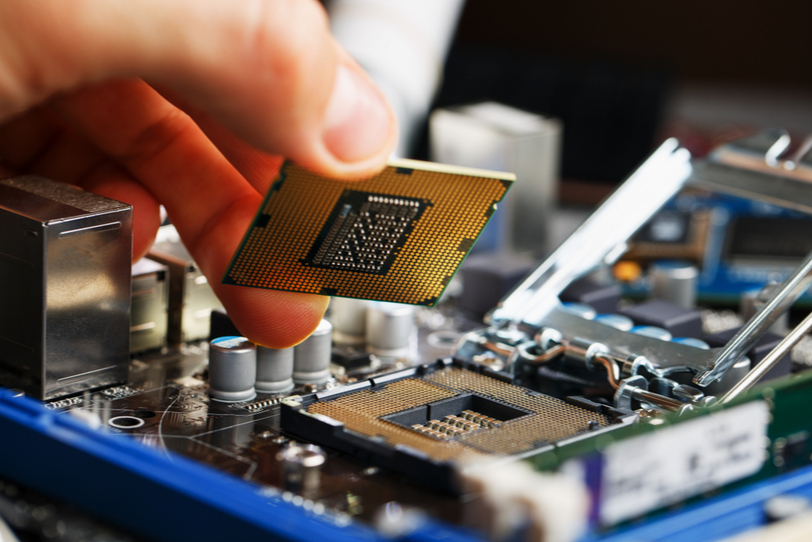
- If your computer's hardware is outdated, consider upgrading components like RAM and storage (e.g., switching to a solid-state drive, or SSD). More RAM and faster storage can significantly improve performance.
- Update Drivers and Software:
- Make sure your operating system and software are up to date. Outdated drivers and software can cause performance issues.
- Update graphics drivers for better performance in graphics-intensive applications.
- Make sure your operating system and software are up to date. Outdated drivers and software can cause performance issues.
- Update graphics drivers for better performance in graphics-intensive applications.
- Scan for Malware and Viruses:

- Run a full system scan using a reputable antivirus or anti-malware program to ensure that your computer is not affected by harmful software that could be slowing it down.
- Run a full system scan using a reputable antivirus or anti-malware program to ensure that your computer is not affected by harmful software that could be slowing it down.
- Disable Visual Effects:
:max_bytes(150000):strip_icc():format(webp)/002-adjusting-visual-effects-to-improve-pc-speed-8a896dc532fd438585bb07f9f1c6b7e4.jpg)
- On Windows, you can disable or reduce visual effects like animations, shadows, and transparency to free up system resources.
- On macOS, you can adjust visual effects in "System Preferences" > "Accessibility" > "Display."
- On Windows, you can disable or reduce visual effects like animations, shadows, and transparency to free up system resources.
- On macOS, you can adjust visual effects in "System Preferences" > "Accessibility" > "Display."
- Manage Browser Extensions:

- Too many browser extensions can slow down your web browsing experience. Disable or remove extensions you don't use regularly.
- Too many browser extensions can slow down your web browsing experience. Disable or remove extensions you don't use regularly.
- Clear Browser Cache:

- Regularly clear your browser's cache, cookies, and browsing history. This can help improve browser performance.
- Regularly clear your browser's cache, cookies, and browsing history. This can help improve browser performance.
- Defragment or Optimize Hard Drive (if applicable):
- On traditional hard drives (HDDs), defragmentation can help improve read/write speeds. However, this is not necessary for solid-state drives (SSDs), and can even be harmful to them.
- On traditional hard drives (HDDs), defragmentation can help improve read/write speeds. However, this is not necessary for solid-state drives (SSDs), and can even be harmful to them.
- Adjust Power Settings:
- On laptops, using a power plan optimized for performance can help your computer utilize its resources more efficiently.
- On laptops, using a power plan optimized for performance can help your computer utilize its resources more efficiently.
- Upgrade to a Faster Internet Connection:
- If your computer's performance is affected by slow internet speeds, consider upgrading your internet plan.
- If your computer's performance is affected by slow internet speeds, consider upgrading your internet plan.
- Reinstall Operating System (as a Last Resort):
- If none of the above methods work, you might consider reinstalling your operating system. This can give your computer a fresh start, but be sure to back up your important files before doing so.
- If none of the above methods work, you might consider reinstalling your operating system. This can give your computer a fresh start, but be sure to back up your important files before doing so.
- Remember that computer performance can be influenced by various factors, so it's a good idea to try multiple methods and see what works best for your specific situation.

Comments
Post a Comment